six tasks · real commands
Guides
upb-moodle guides: six ordinary tasks, each with the steps and the real commands. Pick the guide you need; each one also says what needs your confirmation.
Download a semester's materials
Check the filters
List the courses first, to see exactly what matches:
--facultyaccepts the number (04), the code (ETTI) or the name, and--program,--year,--sem,--seriesand--aynarrow the list.upb-moodle courses --faculty ETTI --year 2 --sem 1Download
The download writes
<Subject> (<Series>)folders, with the course sections as subfolders.--shallowtakes only the structure and the files, without assignments, forums, quizzes and grades.upb-moodle download --year 2 --sem 1 --out D:\MaterialeRun again if it stopped
Files of the same size are skipped, so a repeated run does not download what is complete again.
_rezumat.jsonin the root folder has the errors and warnings.
The download folder layout
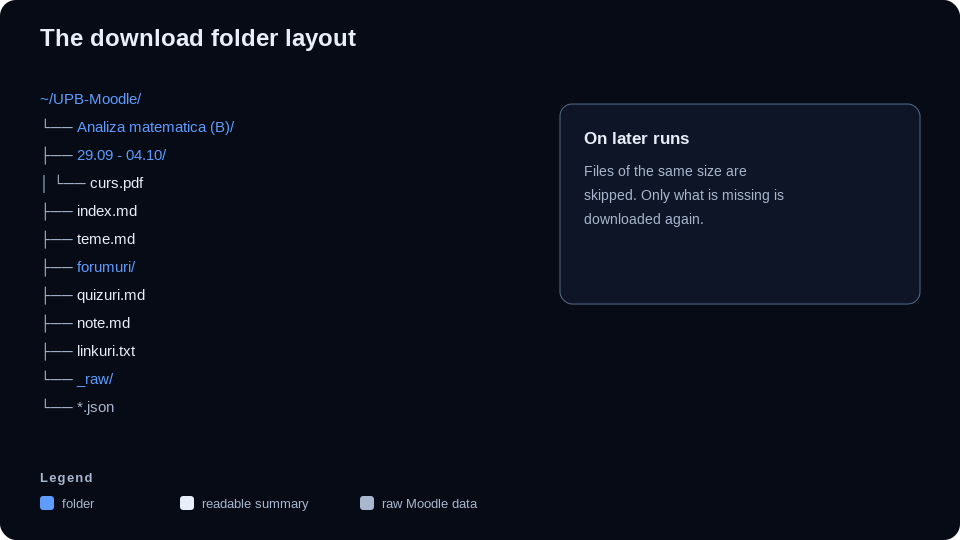
_raw.Diagram: the ~/UPB-Moodle folder holds one folder per course, named after the subject and series, with the course sections as subfolders; the course folder holds index.md, teme.md, forumuri/, quizuri.md, note.md, linkuri.txt and _raw/*.json.
See what you have to do this week
Deadlines and notifications
deadlinesreturns the next days' events, in order.notifications --unreadshows only what you have not read, and the answer includes the unread count.upb-moodle deadlines --days 7 upb-moodle notifications --unreadIn the agent
The ready-made
weekly_briefprompt does exactly this pass: deadlines, unread notifications and open assignments, without writing anything to Moodle.
Submit an assignment
Read the requirement and the state
assignment <id>says whether the assignment has drafts (drafts_enabled), what you already submitted, the grade and the feedback. The id appears inassignments.upb-moodle assignments upb-moodle assignment 201Save the draft, then submit
Without
--submit, the file stays a draft, if the assignment has drafts. With--submit, the submission is final. On an assignment without drafts, saving would submit immediately, so the package refuses;--allow-directforces it, only at your explicit request.upb-moodle submit 201 referat.pdf --yes upb-moodle submit 201 referat.pdf --submit --yes
Answer a quiz
Start the attempt
quiz-startstarts or resumes an attempt and counts against Moodle's limit.quiz-questionsshows the questions, with the answer field name.upb-moodle quizzes --course 101 upb-moodle quiz-start 7 --yes upb-moodle quiz-questions 30Save, then submit
quiz-answerwithout--finishonly saves. Submitting (--finish) is irreversible and needs a second approval. The field names must be copied exactly fromquiz-questions.upb-moodle quiz-answer 30 --answers '{"q123:1_answer": "2"}' --yes upb-moodle quiz-answer 30 --answers '{"q123:1_answer": "2"}' --finish --yes
See the grades
All courses or one
gradeswithout options returns every course's grades. With--course <id>, it returns the course's grade items: grades, ranges, percentages and feedback.upb-moodle grades upb-moodle grades --course 101
Recommended order
For a new semester, the order that works: list the courses, download the materials, check the deadlines, then open the assignments one by one. Downloading does not change the account, so it can run at any time; writes wait for your approval. Each step has its command in the sections above.
If you work with the agent, start with the weekly_brief prompt on Monday morning and with prepare_assignment before each assignment. The prompts do not write on their own: they prepare the context, and the submission stays a separate action, with confirmation.